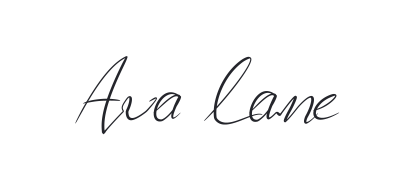
Free online signature generator
Type your name in a handwritten font or draw your own signature with a mouse, finger, or stylus. Create a signature you like and download it as a transparent PNG or SVG.
Signature
Draw your signature here
Create your signature
Turn your name into a signature.
Use the name signature generator to try your full name, initials, or a shortened version in handwritten fonts. Compare several signature previews side by side, choose the letter shapes you like, and adjust the size and color. Download your chosen signature as PNG or SVG for use in your own documents and designs.
Refine your own handwriting.
Draw your signature online with a mouse, finger, or stylus, then refine the same handwriting with six pen styles. Smooth an uneven line, adjust thin-to-thick contrast, or taper the finishing stroke. Size, color, and pen adjustments update the whole drawing immediately. Export a transparent PNG for documents or an SVG for a compatible design workflow.
Signature fonts to try
Relaxed handwriting
Autography
Caveat
Just Another Hand
Reenie Beanie
Kaushan Script
Mortega
Flowing signatures
Agustina
Allison
Hathama
Billyonair
Julietta Messie
Bella Script
Bold and classic
Authentic
Alex Brush
Mr Dafoe
Black
Billion Miracles
The Signature
Hand-drawn signature ideas
Explore 24 original handwritten signature ideas: full names, initials, fine lines, bold strokes, and different finishing touches. Draw your own version and refine it with six pen styles.
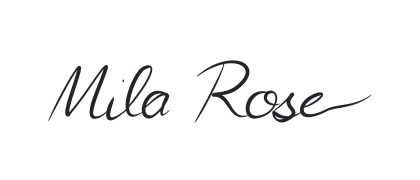
Soft and rounded
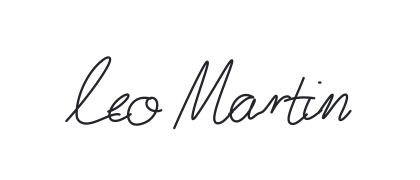
Tall ascenders
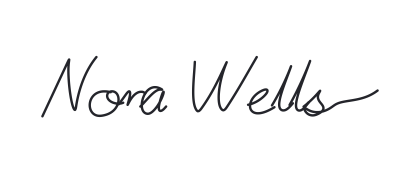
Relaxed everyday
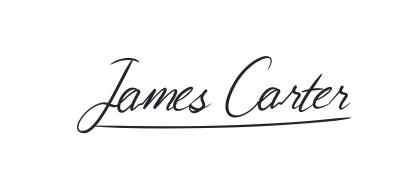
Confident underline
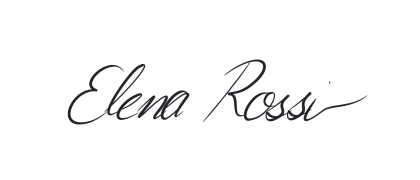
Fine Italian slant
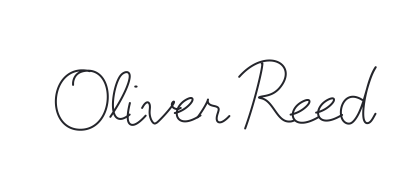
Quiet monoline
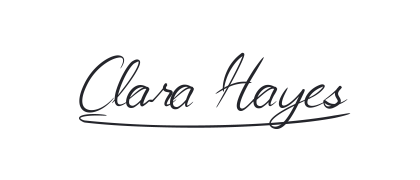
Sweeping capitals
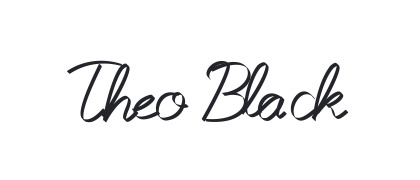
Broad-nib contrast
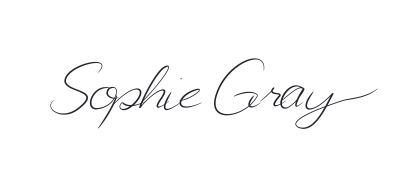
Light hairlines
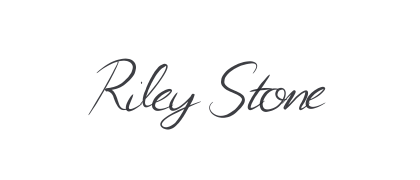
Textured brush
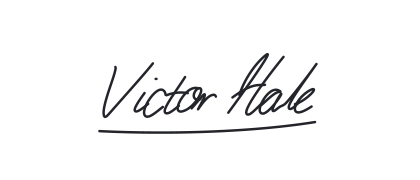
Compact and quick
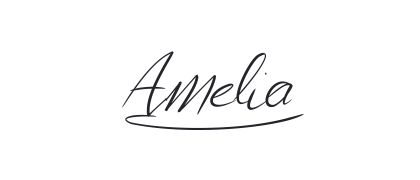
First name only
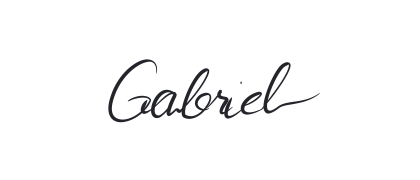
A long final stroke
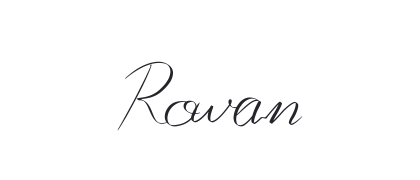
Surname signature
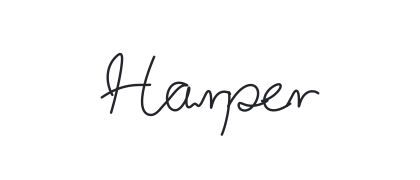
Upright handwritten
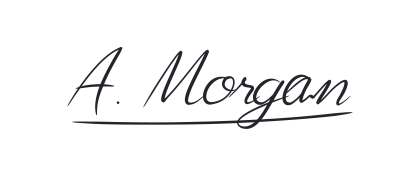
Initial and surname
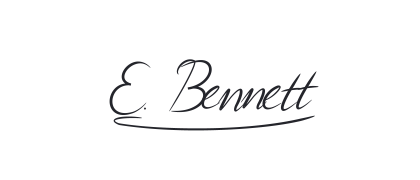
A subtle flourish
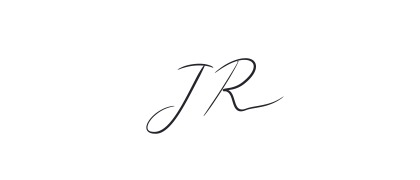
Two flowing initials
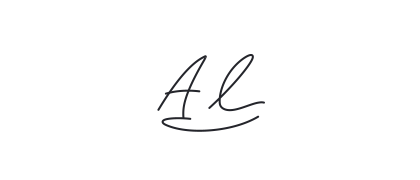
An artist’s initials
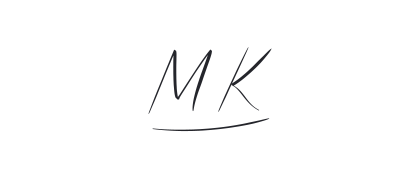
Angular initials
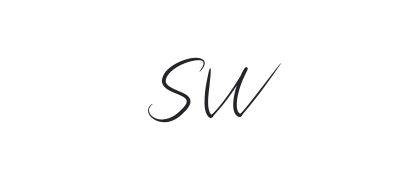
Rounded initials
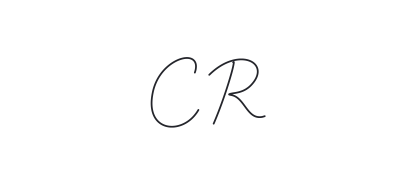
Minimal two letters
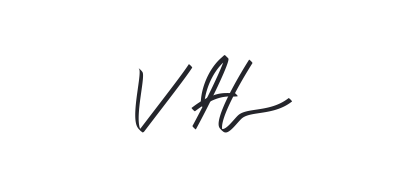
Bold abbreviated
How to create your signature online
Choose Draw or Type
Type your name in a font or draw your own handwriting. Switch modes without losing your work.
Make it your own
Choose a pen and draw, or type your name in a font. Set the size and ink color to suit your layout.
Review the details
Refine drawn strokes with Pen settings. Adjust the existing signature live before downloading.
Download your signature
Save as PNG or SVG. Set Fill to None for a transparent typed signature.
Refine your handwritten signature
| What you see | What to adjust | What to preserve |
|---|---|---|
| Long curves look shaky | Increase Smoothness gradually | Deliberate corners and letter joins |
| Stroke weight changes too abruptly | Compare Flow and Sensitivity | A natural difference between light and heavy strokes |
| Thin lines disappear when reduced | Lower Contrast or increase Size | Open spaces inside small letters |
| Stroke endings look blunt | Increase End taper | Enough weight in short strokes |
| Broad strokes lean the wrong way | Adjust the nib Angle | The original slant of your handwriting |
| Rough edges look noisy | Reduce Texture or choose a cleaner pen | The distinctive shape of the signature |
Signature generator questions
What is an online signature generator?
An online signature generator creates an image of your name or handwritten mark. This signature maker offers two methods: type your name and render it in a font, or draw the signature yourself. Both methods let you download the result for use in another editor.
Is this signature maker free?
Yes. You can type or draw a signature and download PNG or SVG files without creating an account or paying. Downloads have no watermark.
How do I make a handwritten signature with my name?
Select Type signature, enter your name, and choose the Signature or Handwritten font group. Click Generate, compare the previews, and open a result to download it. If you want your own handwriting rather than a font, use Draw signature.
How do I choose a signature font for my name?
Compare the previews using your actual name: capitals, repeated letters, and the length of the surname can change the result. Try your full name and a shorter version with initials. Choose a style that stays clear at the size you will use, then adjust its color and spacing.
Can I draw a signature on my phone?
Yes. Select Draw signature and write with your finger or a compatible stylus. You can also use a mouse or trackpad on a computer. Use Undo to remove the last stroke and Redo to bring it back.
Can I change the pen after drawing my signature?
Yes. Pen presets, Size, Color, and Stroke style apply to the whole existing drawing immediately. You can compare different finishes without tracing your name again. Undo and Redo affect drawn strokes only, keeping your current style. Reset in Stroke style restores the selected pen’s default adjustments without changing Size or Color.
What do the stroke settings change?
Pen’s Smoothing reduces small irregularities in the path. On variable-width pens, Pressure smoothing softens changes in thickness instead. Contrast sets the thin-to-thick difference; Sensitivity changes the pressure response. Start taper and End taper shape each end independently. Flat nib and Ruling pen offer Angle, while Dry brush and Ruling pen also offer Texture.
Does the signature pad support stylus pressure?
It uses pressure reported by a compatible stylus and browser. With a mouse or finger, Simulate pressure uses drawing speed: slower strokes are thicker and faster strokes are finer. Sensitivity has no effect at full pressure, and Pressure smoothing needs changes in pressure or speed to smooth. Both need Contrast above zero. Nib angle is set manually, not controlled by stylus tilt. These are digital pen simulations, not physical ink models.
Which pen should I choose for my signature?
Pen produces an even, round line and offers path smoothing. Fine nib and Brush suit thin-to-thick handwriting. Flat nib changes width with writing direction and the angle you set. Dry brush adds irregular edges; Ruling pen combines an angled nib with width variation and texture. Try them on the same drawing, then check the result at its intended size.
Can I use this for professional design work?
You can prepare signature assets for artwork credits, personal branding, certificates, and other layouts. Draw mode offers precise stroke controls and transparent PNG or vector SVG export. Adjustments affect the entire drawing; there are no layers, individual-stroke selection, saved custom presets, or editable project files. Download each version you want to keep before closing the page.
Can I download a signature with a transparent background?
Yes. Drawn signatures export on a transparent background, even though the drawing pad looks white. For typed signatures, set Fill to None before generating. PNG is usually the easiest transparent format to insert into emails and documents.
Which is better for a signature: PNG or SVG?
PNG works in many email, document, and image editors. SVG keeps the lettering or drawn strokes scalable for compatible design tools. Choose the format your destination supports, and check the signature at its final display size.
How do I add my signature to an email?
Download a PNG and insert it as an image in your email app’s signature editor. Keep your job title, contact details, and links as ordinary text. See our email calligraphy signature guide for examples and sizing advice.
Can I put this signature into a PDF or Word document?
You can insert the downloaded PNG into an editor that accepts images. This tool creates the signature image; it does not upload, edit, or sign a document, verify an identity, or provide a signing audit trail. Use the signing workflow requested by the recipient when those features are needed.
Does this use AI to generate a signature?
No. Type mode renders your text using existing fonts. Draw mode records the strokes you make on the pad. There is no AI signature-design mode.
Is my drawn signature uploaded?
The drawing pad and its PNG and SVG exports run in your browser; the drawn strokes are not sent to our rendering service. Type mode uses our rendering service to turn your entered text into font previews. Your work is not saved as an account project, so download it before closing or reloading the page.
Why does my white signature seem to disappear?
White ink blends into the white drawing pad or a light image viewer. Choose a darker ink color while drawing, or use a dark background when placing a light signature. Always check contrast against the final background.