How to convert text to handwriting
A practical guide to six handwriting styles, thoughtful page layouts, and files that stay readable on screen and in print.
A handwritten page has a different pace from a block of typed text. The open space around a short note, the length of a line, and the shape of a capital can make a message feel quieter or more expressive. Choosing a script is only the beginning: a readable page also needs the right spacing, contrast, and format.
The Text to Handwriting converter turns typed text into pages using six handwriting fonts. You can adjust the lettering, choose paper, and download a PDF or PNG without sending the text to a rendering server. It is a font-based tool, not a replica of your own handwriting: repeated letters keep the same shapes, and it does not invent natural pen-pressure variation.
Choose a style for the message, not just the sample
A beautiful “Hello” does not tell you how a font handles a whole paragraph. Paste a representative part of your message before choosing. Include a capital, a long word, punctuation, and any accents you need. Read it at approximately the size of the finished page.
Everyday uses Caveat, an open choice for longer notes. Flowing uses Allison, with a more connected script rhythm. Quick note uses Reenie Beanie for a loose, informal appearance. Personal uses Autography for expressive messages, Narrow uses Just Another Hand when tall, compact lettering suits the layout, and Bold uses Kaushan Script for short passages with more visual weight.
Use narrow lettering because it fits the mood, not simply to squeeze an extra paragraph onto the sheet. A compact font can still need generous line spacing. Likewise, flowing capitals that look attractive in a heading can become distracting if every line competes for attention.
Nine useful ways to make handwritten pages
1. A personal letter with comfortable line lengths
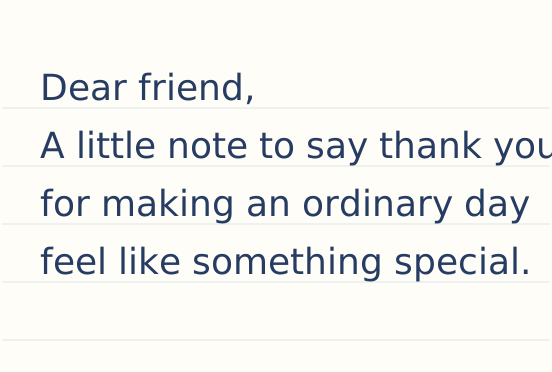
Begin with Everyday on lined A4 or Letter paper. Keep a greeting, a few short paragraphs, and the closing separate. Wider margins produce shorter lines, which can give a letter a calmer rhythm, but they also increase the page count.
If the final sign-off falls alone on another page, first look for unnecessary blank lines. Then make a small adjustment to size or margins. Do not shrink a whole letter until it becomes difficult to read just to save a sheet. A deliberate second page is better than cramped writing.
For an actual drawn closing, create it separately in the Signature Generator. The guide to creating a handwritten signature explains how to refine your own strokes. This page editor does not insert a signature image into the document.
2. A thank-you note that stays short
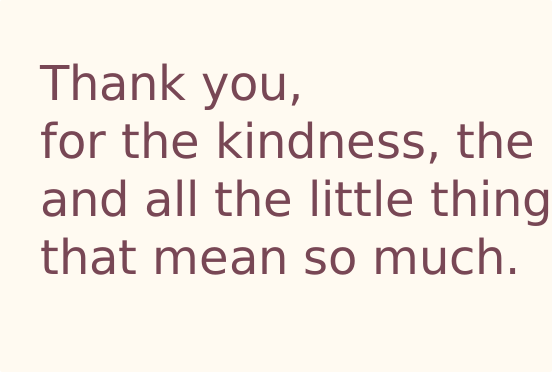
A thank-you message often needs less decoration than expected. Try Flowing on plain A5 paper, with warm paper and a dark, muted ink. Start with a specific sentence about what the recipient did, then leave a little space before the closing.
Review connected letters at their final size. If the script becomes hard to follow, increase its size and shorten the wording rather than increasing contrast alone. Color cannot rescue an overly dense line.
3. Study notes with a visible structure
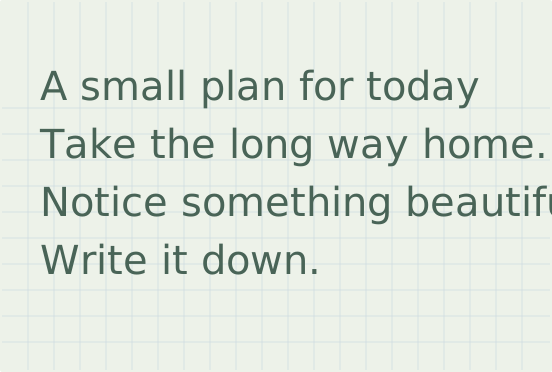
Use Quick note on squared paper for short explanations, a vocabulary list, or a review checklist. Paragraph breaks are the main structural tool: place each point on its own line and leave a blank line between topics.
The editor handles plain text. It does not create equation layouts, interactive checkboxes, tables, or diagrams. If a subject relies on mathematical notation or a non-Latin alphabet, inspect every character. Font support varies, and a fallback glyph can interrupt the handwriting style.
4. A wedding welcome message
A personal welcome note can sit beside the more decorative lettering on an invitation. Try Personal on plain paper, keeping practical details in short sentences. Names with long flourishes need extra room; check them before committing to a smaller page.
Use the Wedding Text Generator for separate names and display lettering. Our wedding invitation calligraphy guide covers pairing decorative scripts with readable supporting text. A monogram can tie the stationery together, but combining that artwork with the exported note requires a separate layout editor.
5. A recipe or reading list to keep
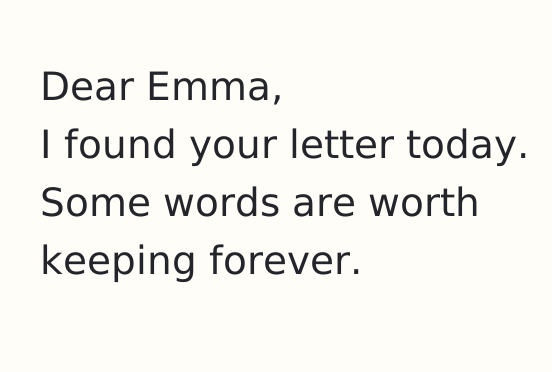
Narrow lettering can give a list a distinctive vertical rhythm. For a recipe, separate the title, ingredients, and method. Keep each instruction understandable on its own, especially if the text crosses a page boundary.
The generator does not keep headings attached to the next paragraph automatically. Review the last lines of each page and adjust the wording or spacing when a heading becomes stranded. For a short reading list, the same approach keeps each title together with its note.
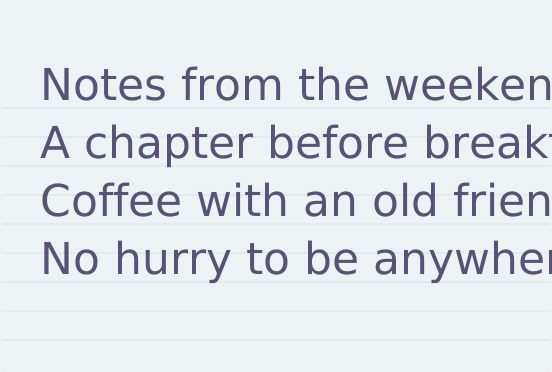
6. A quotation or journal insert
Bold is useful when a short passage should carry more weight. Try plain paper, a restrained color pair, and a few purposeful line breaks. Avoid filling the whole page just because space remains: a short quotation can benefit from generous margins.
If you need only lettering on a transparent background, the Calligraphy Text Generator is a better starting point. Text to Handwriting exports the paper along with the words. See the printable calligraphy guide for using lettering assets in a larger design.
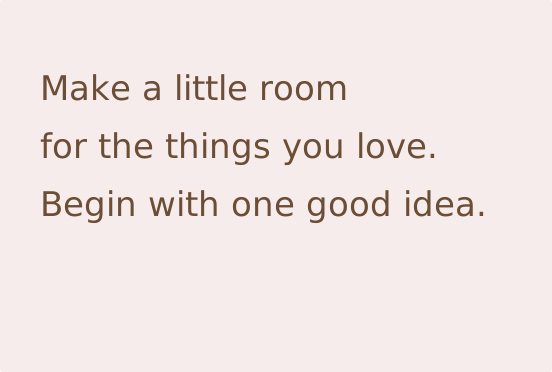
7. A travel journal with details worth keeping
A travel note becomes more interesting when it records one small scene rather than an entire itinerary. Write a place and date, then a few details you want to remember: the sound outside a café, a sentence someone said, or the view from a train. Everyday on warm lined paper gives these fragments a consistent shape without turning them into a formal report.
Keep the wording in short paragraphs. Place names, unfamiliar words, and dates can be longer than the rest of the text, so check those lines first. If a name wraps badly, give the line more space by reducing the margins a little; changing the whole document to tiny lettering should be the last option.
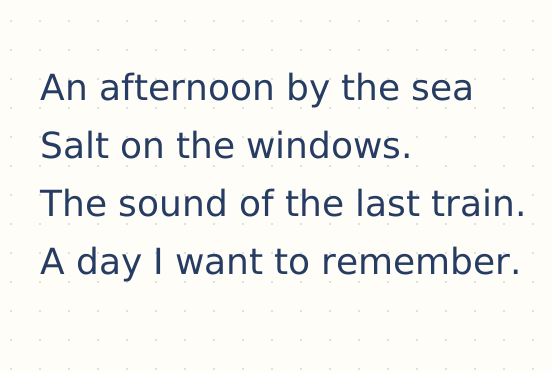
For a printed travel book, match the exported page format to the book layout before placing it. The editor does not add photographs or arrange a scrapbook spread. Export a PNG if you want to combine the writing with photos in another application; export PDF if the note itself is the finished page.
8. A gift message with room for a personal addition
A short gift note can be more effective than a page of decorative text. Start with the recipient's name, say why the gift made you think of them, and close with a simple wish. Flowing script on pale pink paper gives the message a gentle character; charcoal on white is a quieter alternative.
Leave enough blank space to add a date or a real signature after printing. The digital lettering can provide the body of the note while a few handwritten words make the finished piece personal. If you want only a small label, this generator does not offer arbitrary label dimensions: use A5 as a starting point and place the exported image into your label layout separately.
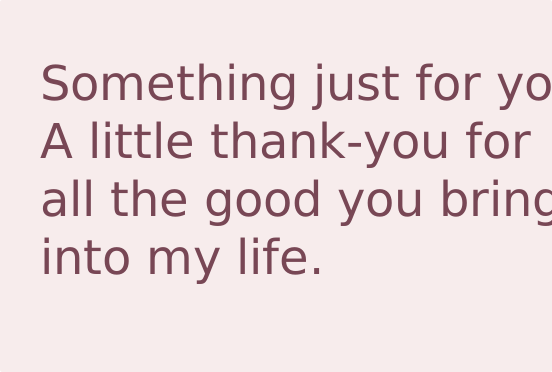
Before making several copies, print one and check the finest strokes. If they are too delicate, choose a stronger handwriting style or increase the lettering size. A higher DPI helps preserve the rendering, but it does not make a thin font heavier.
9. A poem or reading with intentional line breaks
For poetry, line endings are part of the writing. Paste the poem with its line breaks intact, then inspect the longest line before changing anything else. The editor keeps your breaks but will also wrap text that exceeds the writing area. That extra wrap can change the rhythm of a verse.
Try Bold on plain paper when the excerpt is short, or Everyday for a longer reading. Keep blank lines between stanzas. If a line wraps, compare a smaller font size with narrower margins; choose the adjustment that preserves both the line and a readable page. Avoid manually adding spaces to imitate centered text: different handwriting fonts have different letter widths, so those spaces are fragile.
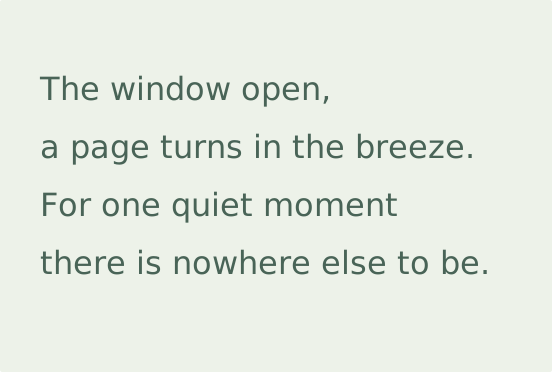
Read the final PDF from beginning to end, especially around page breaks. The editor does not keep a stanza together automatically. Adjust the text or spacing if a closing line is stranded. The PDF carries the typed text under the handwriting, so readers can select and search it; keep a plain-text copy for editing.
Refine your handwritten page
Make one change at a time. Start with letter size, then line spacing, then margins. Each can change the page count, so check the document again before exporting.
| What you see | What to adjust | Check before exporting |
|---|---|---|
| Lines feel crowded | Increase Line spacing or reduce Size | Tall loops and descending strokes stay separate |
| Text runs too close to the edge | Increase Margins | Check the last word on each line |
| One short line spills onto a new page | Review paragraph breaks, Size, and Margins | Keep the paragraph readable rather than forcing it to fit |
| Lettering looks faint | Choose darker Ink or lighter Paper | Review at the size people will read |
| The image looks soft in a layout | Increase PNG Width | Avoid enlarging a small PNG after export |
| You need a complete printable document | Choose PDF, All, and the matching paper format | Check page order and printer scaling |
These adjustments are available in the handwriting editor. On a phone, tap Settings or swipe its handle upward. Scroll inside the panel to reach Paper and Colors, then swipe the handle down to return to the page.
Pick paper before making the final adjustments
A4, Letter, A5, A6, and Legal have different proportions and writing areas. Choose the format your printer or destination document expects before fine-tuning line breaks. Moving from a large page to A5 or A6 can create additional pages even when the text size stays unchanged.
Plain paper is the quietest background. Lined paper provides a horizontal structure; squared paper adds a more technical notebook feel, dotted paper a lighter guide, and narrow ruling a denser one. The ruling follows the spacing setting, so changing line spacing affects both the text and the paper pattern. Paper effects such as crumpled, aged, or folded paper are exported with the page, so keep them subtle when the text must stay easy to read.
Colors need to work together. A dark ink on a light background is a useful starting point. Colored paper becomes part of the exported image and PDF: it is not a request to the printer to use colored stock. If you plan to print on cream stationery, choose white in the editor unless you want the printer to add a background color too.
Compare handwriting paper patterns
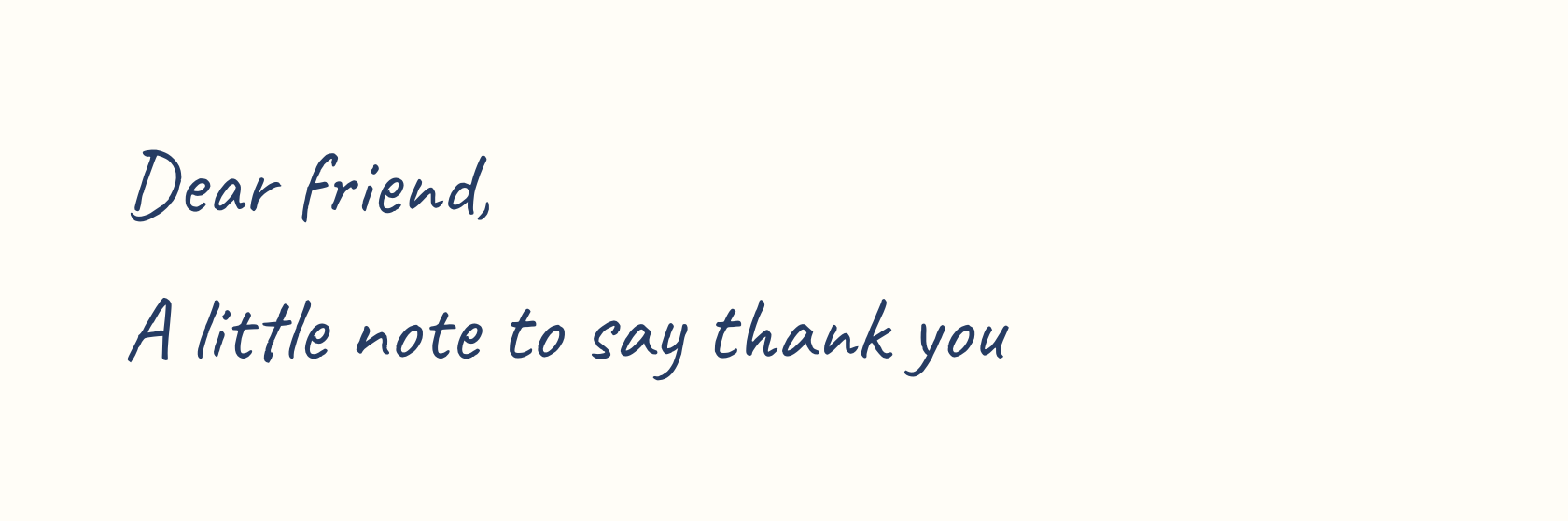
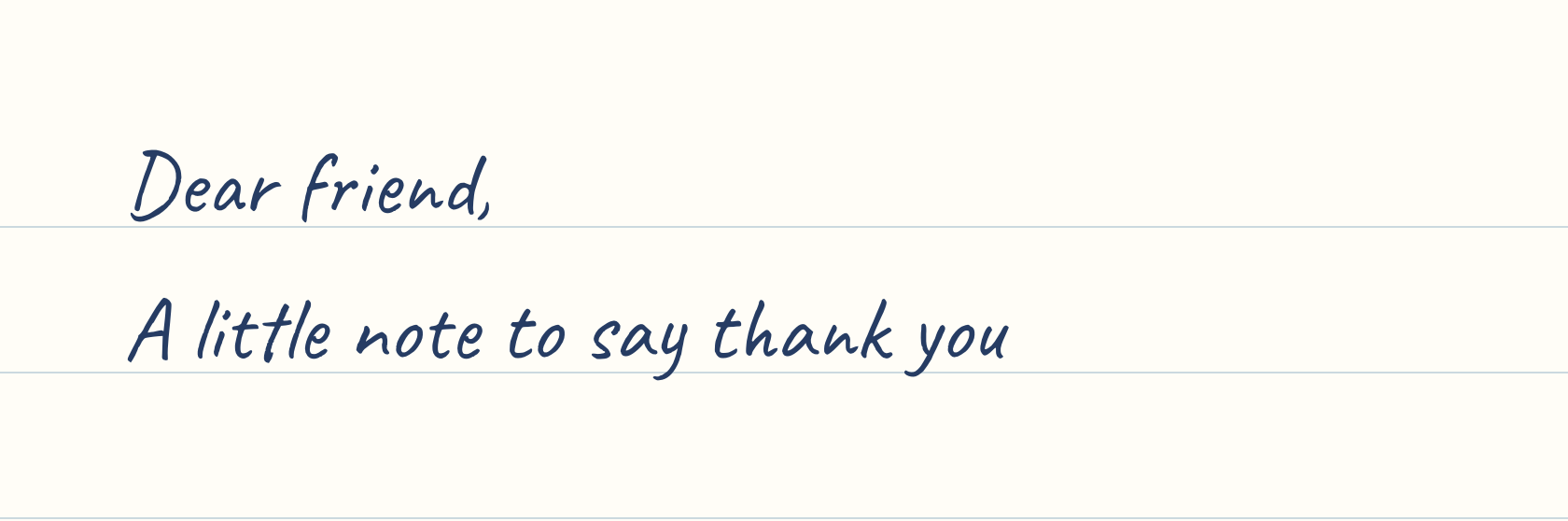
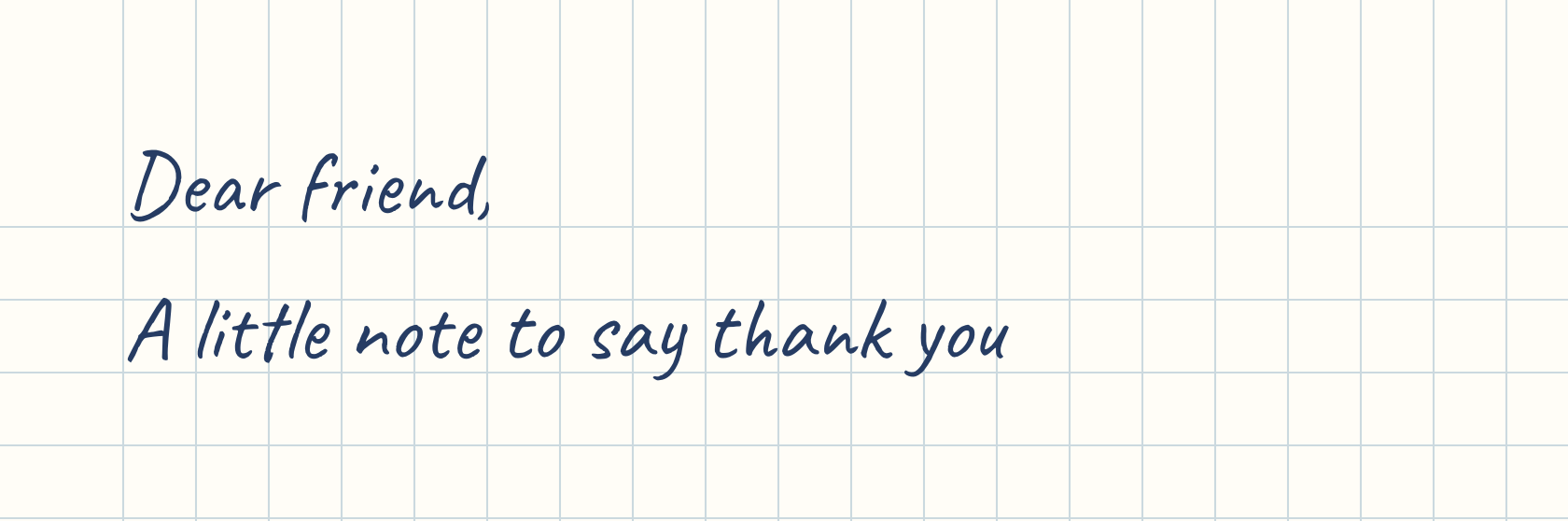
The same words can feel quite different on an empty sheet, a ruled page, or a grid. These five close-ups keep the handwriting, ink, paper color, and line spacing identical. Only the pattern changes. Each sample shows the top of the page.
Plain paper
An unruled sheet suits a short letter, a dedication, or a quotation. Paragraph breaks and margins provide the structure; leave enough space between thoughts.
Lined paper
Start here for a longer letter. The horizontal rules help the reader follow each line without adding much visual weight.
Squared paper
A square grid gives lists and study notes a notebook feel. It is a background guide: the editor does not turn text into a table or align equations to individual cells.
Dotted paper
Dots suggest a structure while leaving more open space around the letters. Try them for a travel memory, a journal insert, or a short plan. Pale dots may become less visible in a reduced image, so inspect the exported file.
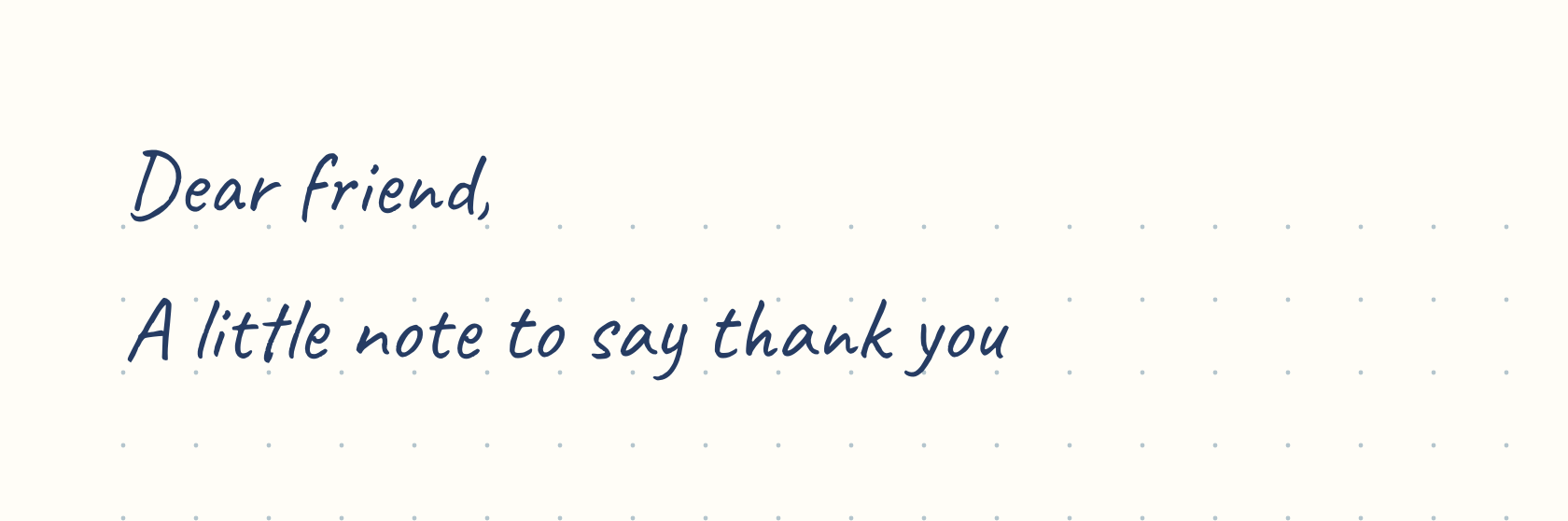
Narrow paper
Narrow adds intermediate rules between the main writing lines. It does not automatically fit more text on a page: that still depends on lettering size, line spacing, and margins. Use it when you like the closer ruling, not as a substitute for layout adjustments.
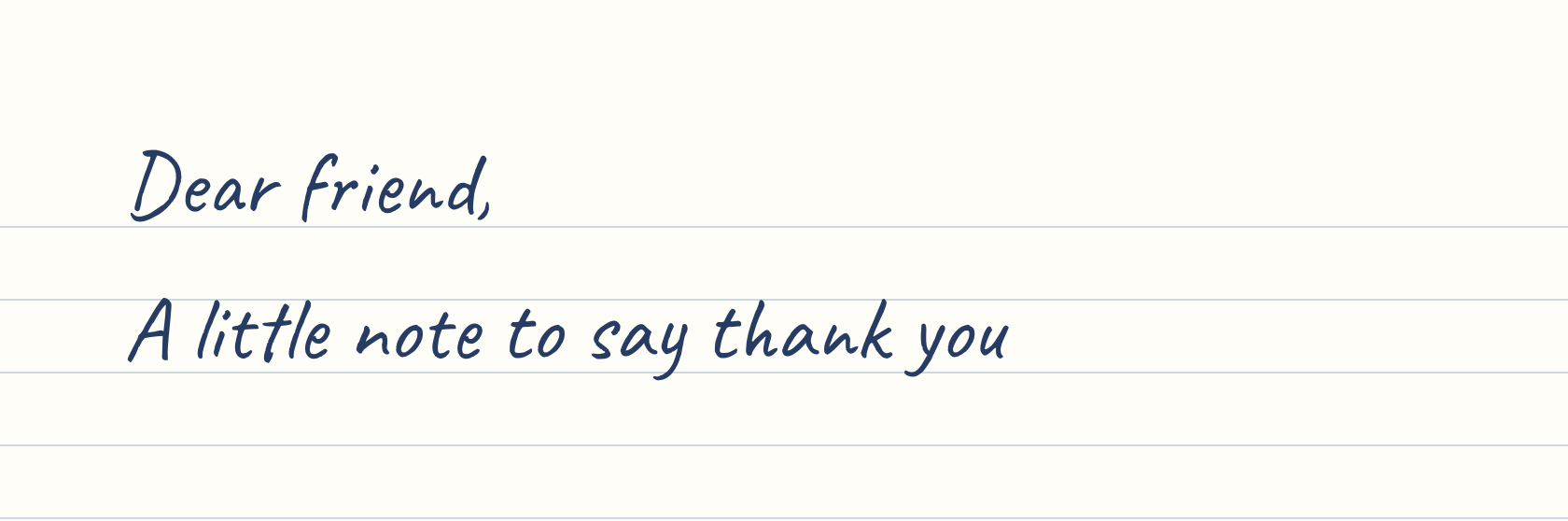
On a phone, the compact settings panel currently offers Plain, Lined, and Squared. Dotted and Narrow are available in the wider desktop panel.
Give handwritten pages a paper texture
Choose a preset in Effects to add texture. None keeps the sheet clean and hides the effect controls. The texture is part of the downloaded page, not a decoration around the preview.
A texture should support the message. These three complete pages use texture differently, leaving room for the words and the empty space around them.
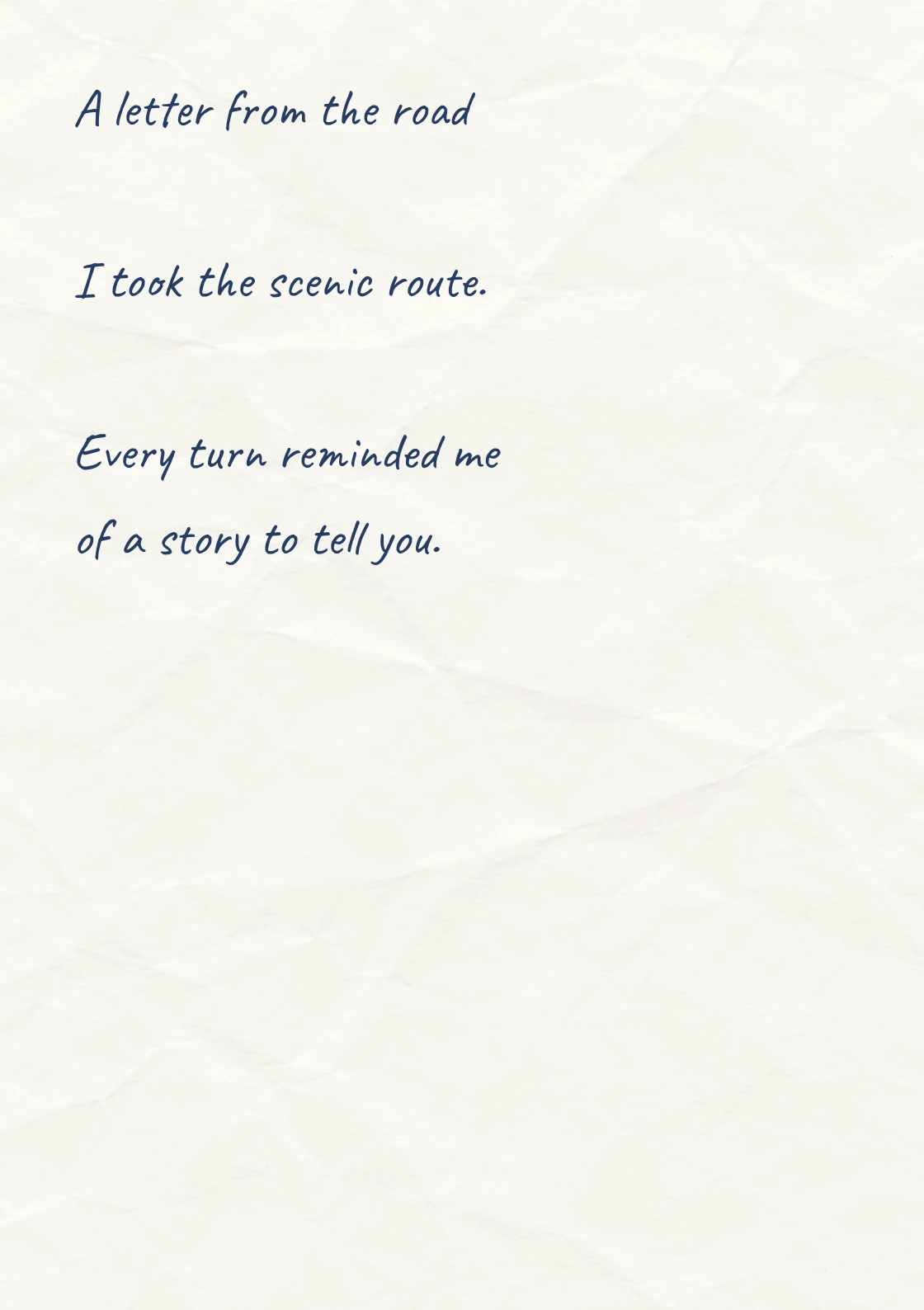
A letter on crumpled paper
A short message from a journey can carry a little wear without looking distressed. This example uses Everyday handwriting, plain paper, and Crumpled at 35% intensity with Scale at 0%. The creases remain behind the dark ink.
Crumpled is most useful when the page itself is part of the image: a digital letter, a scrapbook insert, or a visual story. For an everyday document that someone needs to print cheaply, None is usually the more practical choice.
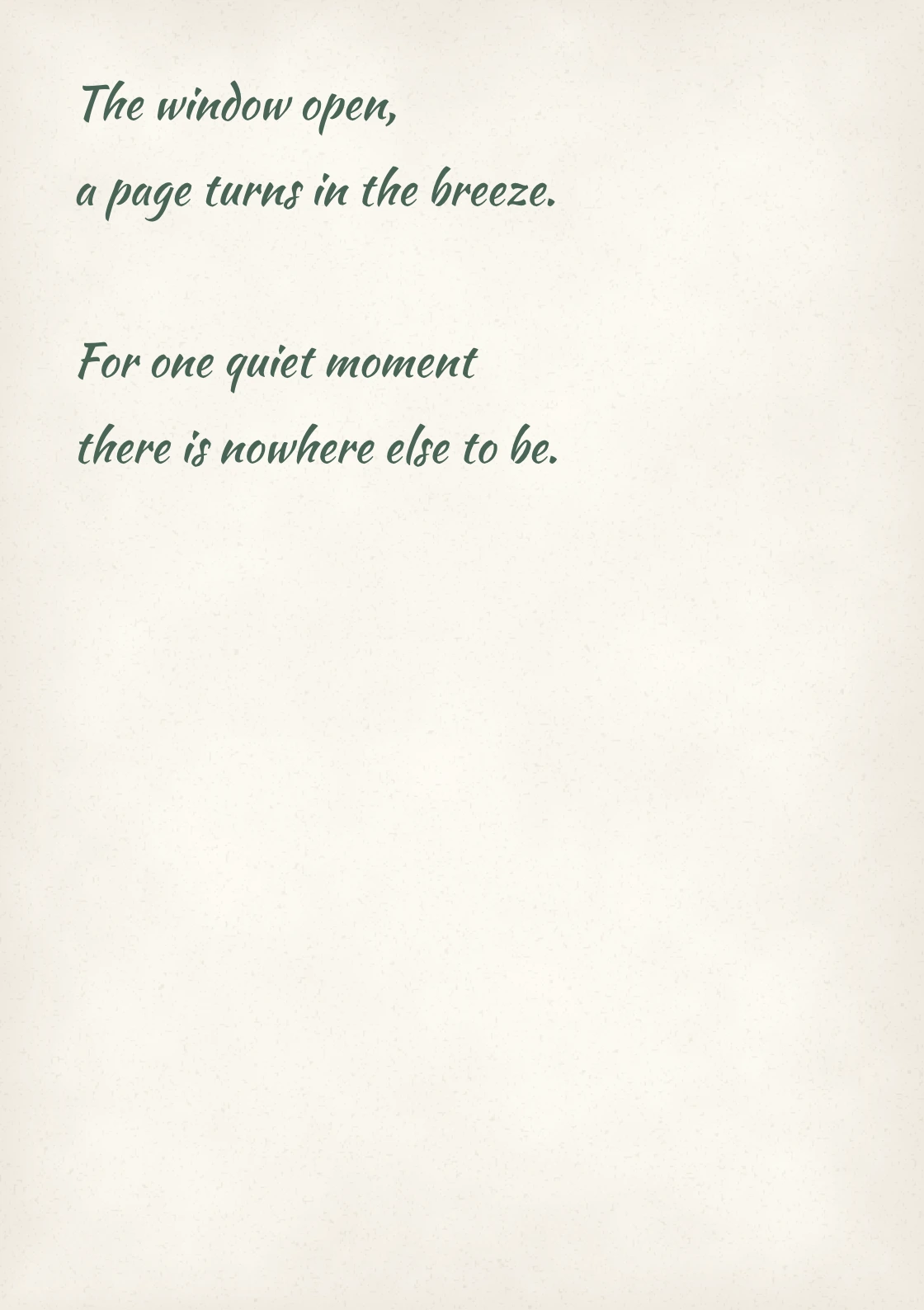
A poem on aged paper
Aged suits a short reading or keepsake when a warmer sheet contributes to the mood. Here, Bold handwriting sits on plain paper with Intensity at 40% and Warmth at 50%. The dark green lettering stays distinct from the mottled background.
Keep intentional line breaks in the text. An aged surface cannot fix an awkward wrap or a cramped final line. For more ideas about combining decorative lettering with printed layouts, see the printable calligraphy guide.
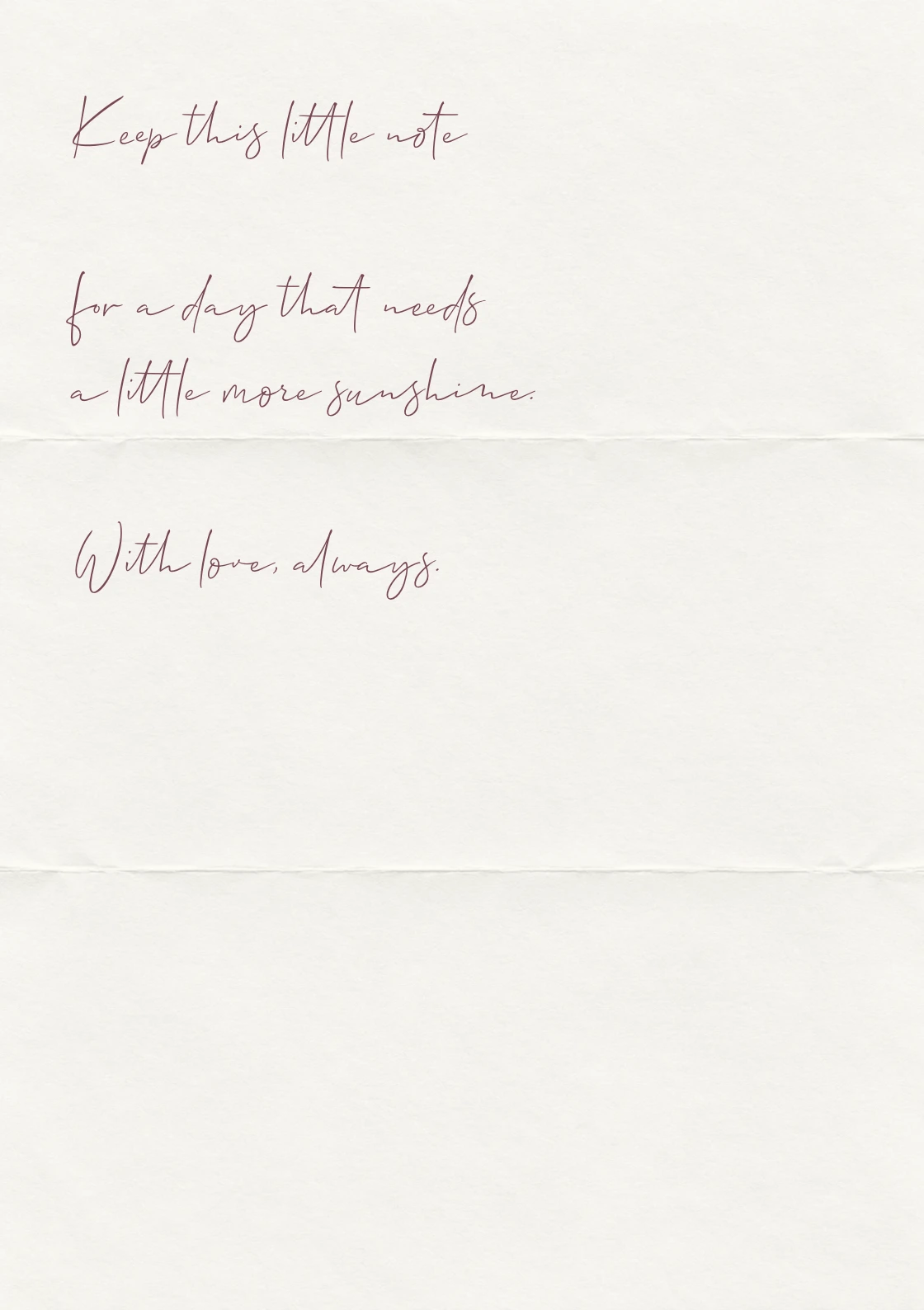
A keepsake on folded paper
Folded suggests a note that has been tucked away and opened again. This example uses Flowing handwriting, berry-colored ink, 50% intensity, and 0° rotation. Short paragraphs leave space around the fold marks.
Use Rotation to change the direction of the texture when a crease competes with an important line. The fold is a printed visual effect: it does not create a physical fold or a cutting guide in the downloaded PDF.
Set paper-effect intensity by readability
Intensity controls how prominent the effect appears. The comparison below uses the same Crumpled texture, the same Scale value of 0%, and the same message at 20%, 50%, and 80%. These are close-ups of the page, so you can judge the ink against the creases.
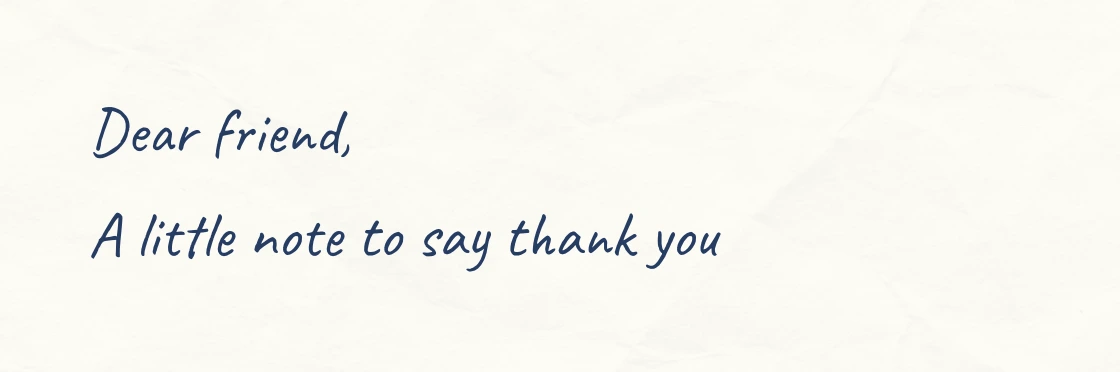
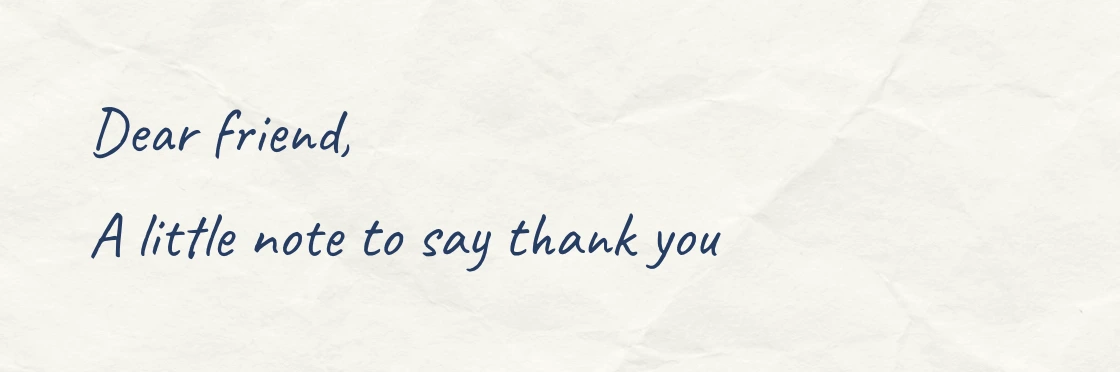
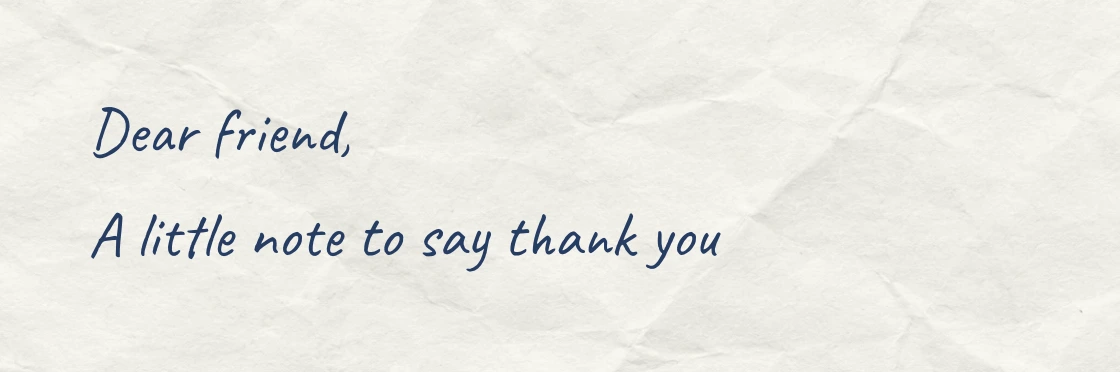
Start low, then increase the intensity while reading the text at its intended size. A stronger effect is not automatically more realistic. Fine lettering, pale ink, and small output sizes leave less room for a busy background.
| Effect | Additional control | What to check |
|---|---|---|
| Crumpled | Scale | Creases do not overwhelm the letter shapes |
| Aged | Warmth | Paper and ink remain clearly separated |
| Scorched | Rotation | The strongest edge treatment suits the composition |
| Stain | Size | The stain adds character without distracting from the message |
| Folded | Rotation | Fold marks do not compete with an important line |
When printing, remember that the paper color and texture use ink too. Print one page at actual size before making a batch. If the textured PDF is too large to send, compare a lower export DPI first, then follow the PDF compression guide and check that fine handwriting survives.
PDF or PNG: choose the file for its destination
Choose PDF for a whole document. Open Download, select PDF, then All for every page or Current for the first sheet shown in the preview. The file preserves the selected physical paper format.
Start with 300 dpi for print. A 150 dpi export can be sufficient for screen review with a smaller file, while 600 dpi provides more raster detail and can create a substantially larger document. Increasing DPI does not change the letter layout or add character detail that the font does not contain. Print a sample at the intended size before making many copies.
The PDF contains page images with your typed text underneath: you can select, copy, and search it, and copied lines break where the handwriting wraps. Keep the original wording separately for editing. If the file is too large to share, first consider a lower DPI; the PDF compression guide explains further tradeoffs.
Choose PNG to place one page inside another design or share it as an image. The current page is exported; in a two-page fullscreen view, that means the left sheet. High, Mid, and Low are width presets of 2400, 1600, and 800 pixels. You can set a custom width from 400 to 4000 pixels, and the height follows the page proportions. PNG compression remains lossless at every setting.
Review the pages, then save your work
For a longer document, fullscreen can show two pages side by side when enough width is available. Use this to check endings and beginnings together. A change near the top of the text can move content on later pages, so do not review only the first sheet.
Before downloading, check paragraph breaks, unsupported characters, the final line on every page, and the contrast at reading size. The editor does not save the document between visits. Keep the original text and download the finished file before closing or reloading the page.
Text to handwriting FAQ
Is this my own handwriting?
No. The generator uses six handwriting fonts. It does not learn your handwriting, reproduce pen pressure, or randomize repeated letters.
Can I download several pages as one PDF?
Yes. Open Download, choose PDF and All, then download. Current exports the first page shown in the preview.
What does PNG quality change?
High, Mid, and Low choose widths of 2400, 1600, and 800 pixels. You can also set a custom width. PNG uses lossless compression; the presets change resolution, not JPEG-style compression quality.
Which PDF DPI should I choose?
Start with 300 dpi for printing. Use 150 for a smaller file to view on a screen, or 600 for more raster detail when the destination needs it. Check the result at its intended size.
Can I select the text inside the downloaded PDF?
Yes. The handwriting is an image, and your typed text lies invisibly under it, so you can select, copy, and search it in a PDF viewer. Copied text breaks where the handwriting wraps.
What is Letter paper?
Letter is an 8.5 × 11 inch page format commonly used in North America. Choose the format that matches your printer or destination document.
Does the tool support every language?
Character support depends on the chosen font. Check accents and non-Latin characters in the preview; unsupported characters may appear in a fallback font.
Can I use my actual handwritten signature?
Use the Signature Generator to draw your signature separately. This tool formats typed text and does not capture handwritten strokes.